Step by step
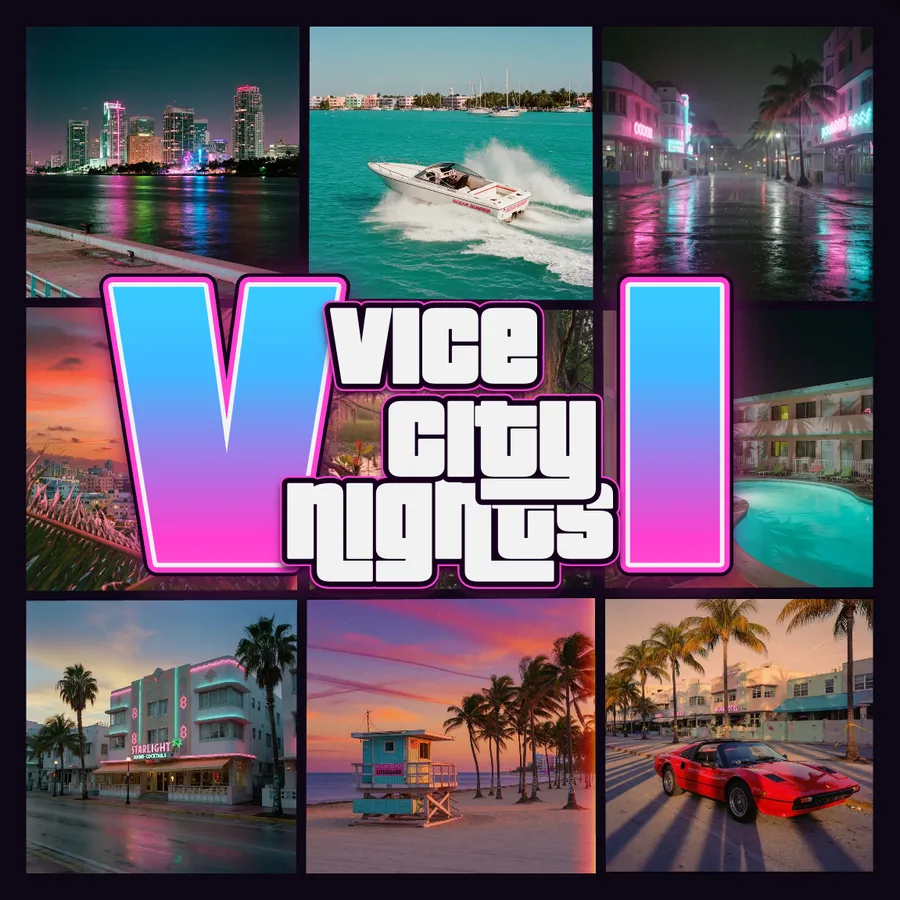
- Open the Photos tab and press Add photos. Pick several at once and they fill the numbered panels in order, empty panels first.
- Tap any numbered panel to replace just that photo. Hover a thumbnail to see which panel it is on the poster. Press the cross to go back to the original artwork.
- Open the Text tab. Pick a template for the wording and colours, or type your own three lines and a numeral. You can also click the words on the poster and type there.
- Open the Layout tab and try Vice, Grid, Shards, Feature or Quad. Your photos move with you.
- Press Download and pick a size: Instagram post, Story, phone or desktop wallpaper, HD or Print. Or press Share to send it to Instagram, WhatsApp, X, Telegram or Facebook.
Getting the photos right
- Faces are centred in each panel. For a tall panel use a portrait photo; for a wide one use a landscape shot, or crop it on your phone first.
- Bright, saturated photos match the GTA palette. A sunset, a pink wall, a blue sky behind the subject helps.
- One face per panel reads best. Group photos work in the big panels of the Feature and Quad layouts.
- Fewer photos than panels is fine. Leave the rest on the original art, or switch to Quad for four panels.
Getting the text right
Short words look most like the real logo: three lines of four to eight letters and a one or two character numeral. Two-character numerals like 30 or XI sit either side of the words, like the V and I in the original. Longer numerals are centred behind the words and shrink to fit. The numeral can be filled with a photo instead of the gradient from the Text tab.